If you’re running Tailscale on a GL-iNet router but can’t enable it as an exit node in the Tailscale admin dashboard, here’s a simple way to fix it.
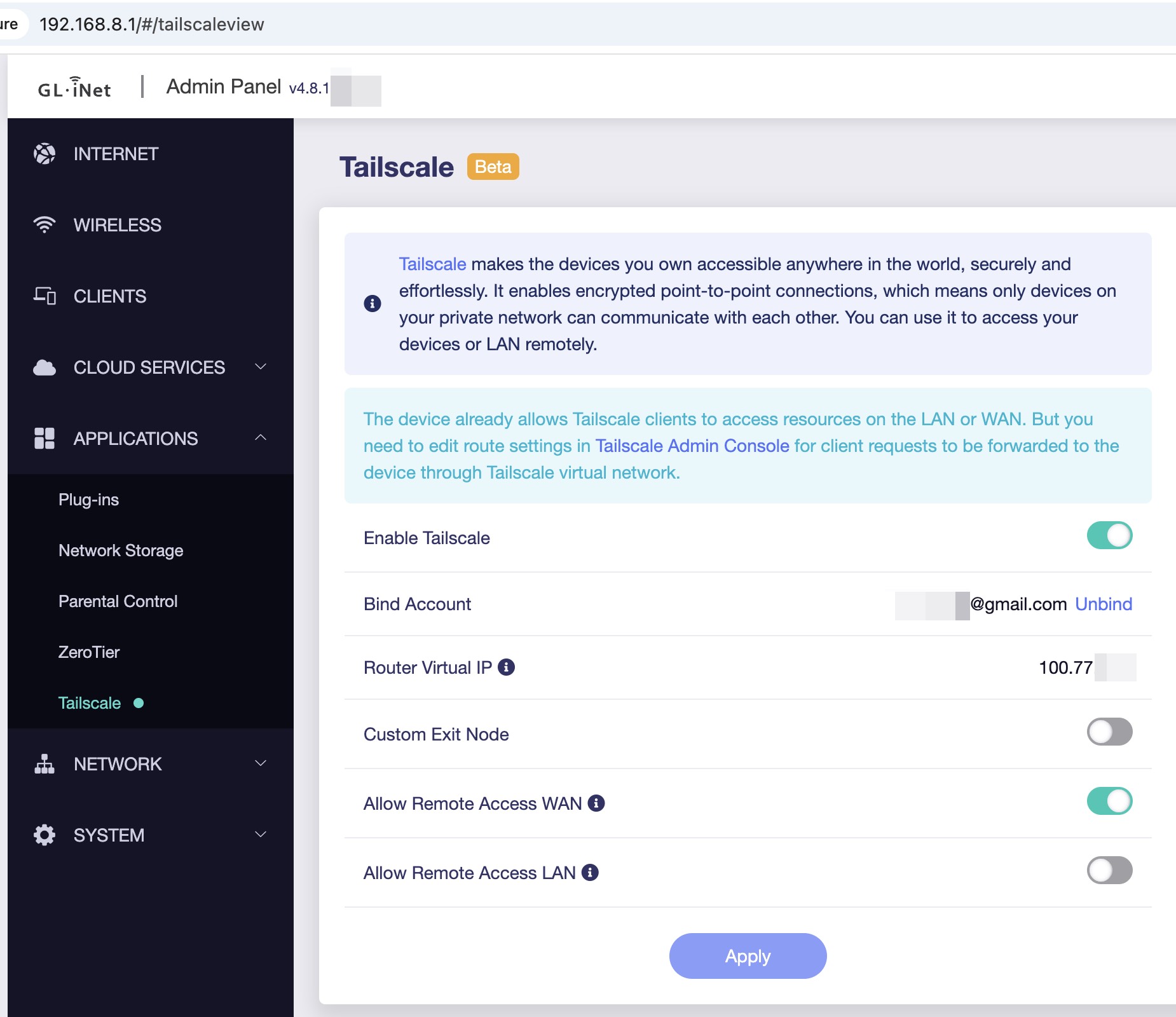
Instead of trying to do it from the dashboard, SSH into your GL-iNet box:
ssh root@<your_local_IP>
Use the same password you use for the GL-iNet web interface.
Once logged in, run:
tailscale up \
  --advertise-exit-node \
  --accept-dns=false \
  --accept-routes \
  --advertise-routes=192.168.68.0/24
(Replace 192.168.68.0/24 with your actual LAN subnet.)
After that, you will be able to enable the router as an exit node in the admin console at:

https://login.tailscale.com/admin/machines
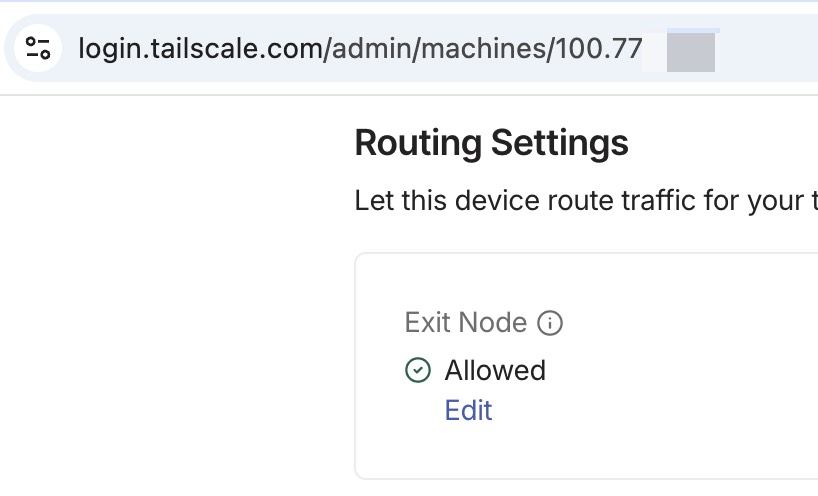
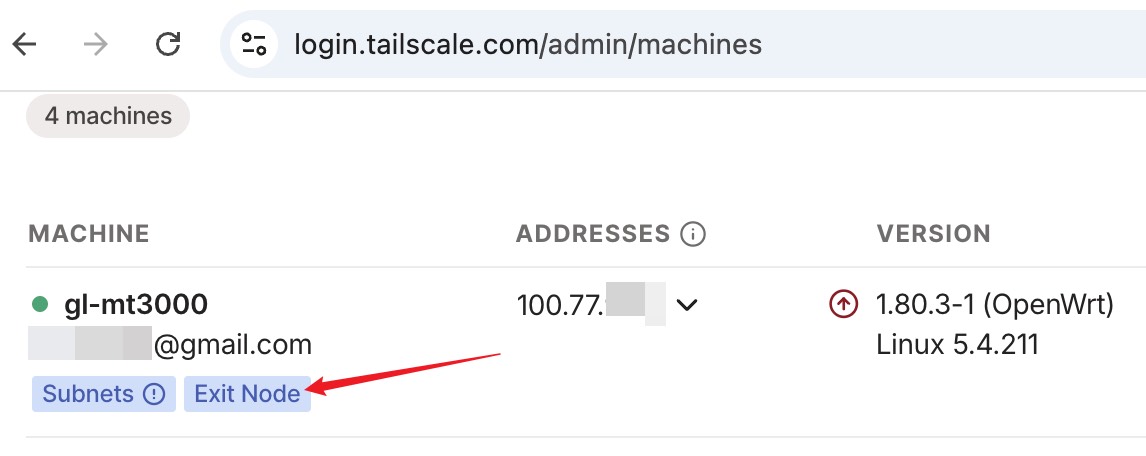
Then on your iPhone (or any other device in the Tailscale app), just connect through your router — it will route internet traffic via the GL-iNet exit node.
Update / Add:
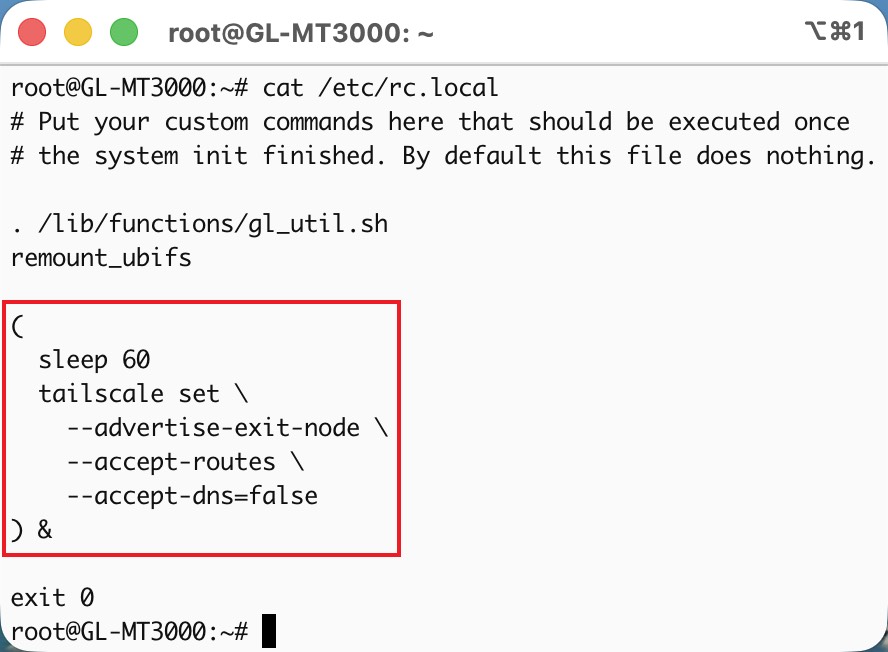
You also need to add the following to /etc/rc.local.
Without this, the router won’t advertise itself as an exit node after reboot.
(
  sleep 60
  tailscale set \
    --advertise-exit-node \
    --accept-routes \
    --accept-dns=false
) &
The delay is important—if it runs too early during boot, the exit node setting doesn’t stick.