Separate your AI sessions into independent chat topics
 What This Guide Covers
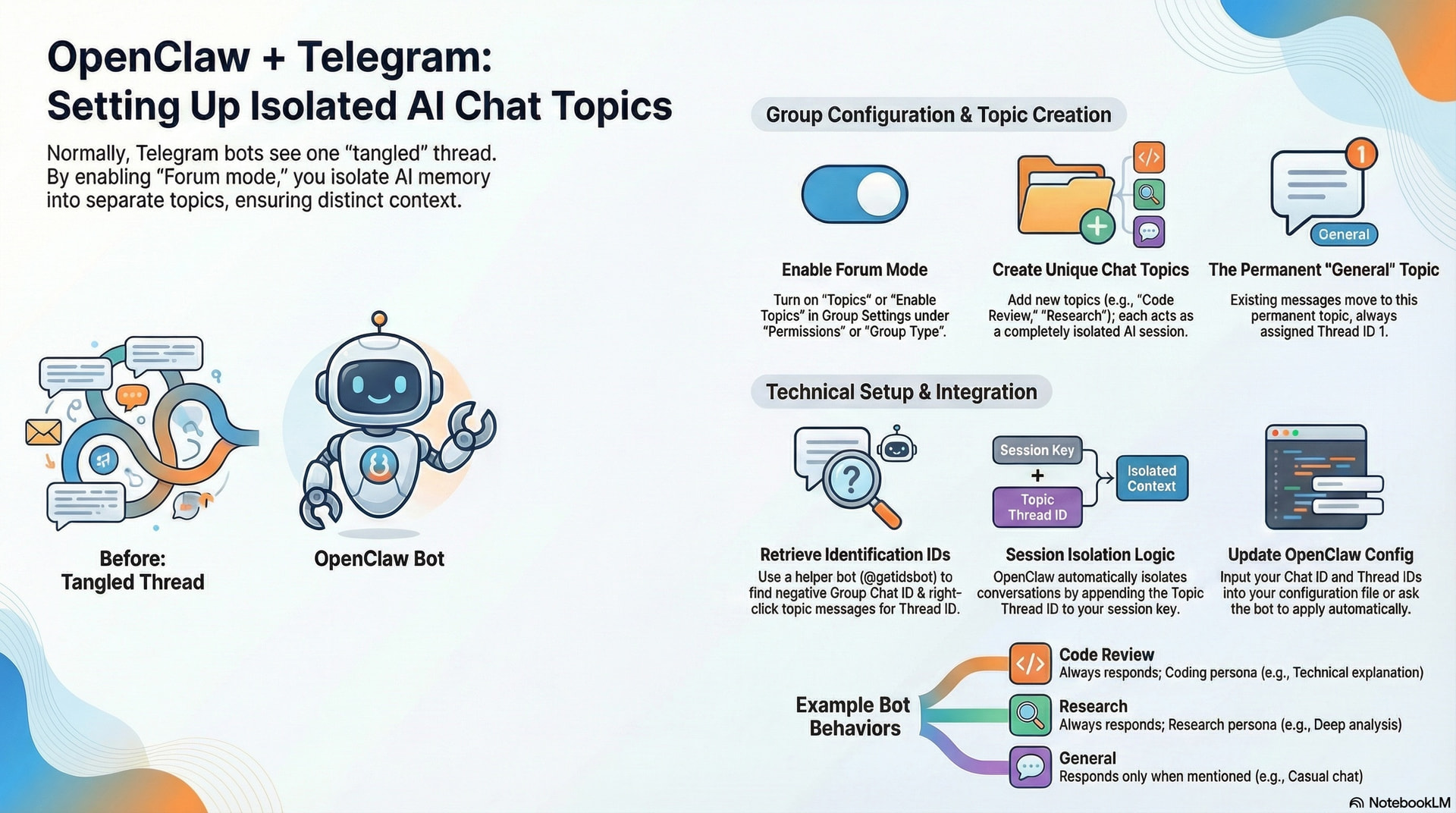
Telegram’s Group Topics feature (also called Forum mode) lets you divide a single group chat into multiple independent threads — each with its own name, message history, and isolated conversation. When your OpenClaw bot is set up correctly, each topic also gets its own isolated AI session, meaning the bot remembers completely separate conversations per topic.
This guide walks you through every step:
| Step | What you’ll do |
|---|---|
 Part 1 Part 1 |
Enable Topics in your Telegram group |
 Part 2 Part 2 |
Create and name topics for different sessions |
 Part 3 Part 3 |
Find your group Chat ID and topic Thread IDs |
 Part 4 Part 4 |
Configure OpenClaw for topic-based sessions |
Before you begin: You need admin rights in your Telegram group and access to your OpenClaw configuration file (
openclaw.config.jsor equivalent YAML/JSON). Your bot must already be added to the group.
 How It Works — The Big Picture
Normally, all messages in a Telegram group go to one shared chat. Everyone — including your bot — sees a single, tangled thread. Group Topics turns the group into a supergroup forum with separate thread panels, like channels inside a server.
OpenClaw tracks each topic by appending the topic thread ID to the session key. The internal session identifier looks like this:
agent:<AGENT_ID>:telegram:group:<CHAT_ID>:topic:<THREAD_ID>
Example:
agent:default:telegram:group:-1001234567890:topic:42
 Takeaway: The bot keeps separate memory and context for Topic
 #42 vs Topic #78 in the same group — coding help, general chat, and project threads never interfere with each other.
Part 1 — Enable Forum/Topics in Your Telegram Group
Step-by-step on mobile (Android & iOS)
-
Open your group’s settings
Tap the group name at the top of the chat to open the group info page. -
 Tap the Edit (pencil) icon
This opens the group editing screen. -
 Find the Topics toggle
Scroll to Permissions or Group Type and turn Topics (or Enable Topics) ON. -
Save changes
Tap the checkmark or Done to save.
Note: After you enable Topics, existing messages move into a default “General” topic (Thread ID = 1). That topic is permanent and cannot be deleted.
Part 2 — Create Topics for Different Sessions
Once Forum mode is on, you can create as many topics as you like. Each one becomes an independent AI session for your OpenClaw bot.
Creating a new topic
- Tap or click Topics in the group header
 Tap New Topic (or use + / the ⋮ menu)
 Name it for its purpose — e.g. Code Review, Research, Project Alpha, General Q&A
 Optionally add a cover emoji or description
 Save — the topic is live
 Tip: Keep topic names short and descriptive — you’ll use them when tuning per-topic settings in OpenClaw.
Example topic structure
| Topic Name | Purpose | Bot Behavior |
|---|---|---|
| General | Casual chat & announcements | Responds only when mentioned |
| Code Review | Paste code for review/explanation | Always responds, coding persona |
| Research | Deep research & analysis | Always responds, research persona |
| Project Alpha | Project-specific planning | Always responds, project context |
| Support | Troubleshooting & help | Always responds, support persona |
Part 3 — Find Your Group and Topic IDs
To configure OpenClaw you need two things:
| You need | What it is |
|---|---|
 Group Chat ID Group Chat ID |
Identifies the group (usually a negative number) |
| Topic Thread ID |
Identifies which topic / thread the message is in |
Finding your Group Chat ID
Telegram group/supergroup IDs are always negative, e.g. -1001234567890.
 Use a helper bot
- Add
@userinfobotor@getidsbotto your group - Forward any group message to that bot in a private DM
- The bot replies with the group chat ID
- Remove the helper bot when you’re done
Finding a Topic’s Thread ID
 From Telegram Desktop
- Open the group and open the topic you care about
- Right-click the first message in that topic
- Choose Copy Message Link
- Link shape:
https://t.me/c/[group_id]/[topic_id]/[msg_id] - The middle number is your Thread ID
Part 4 — Configure OpenClaw for Group Topics
Add your Chat ID and Topic Thread IDs to your OpenClaw config. Settings apply at the group level first; you can still override per topic when you need to.
Minimal working configuration
This is the simplest setup: the bot can work in your group and treat each topic as its own session automatically.
// openclaw.config.js

module.exports = {
  channels: {
    telegram: {
      enabled: true,
      botToken: process.env.TELEGRAM_BOT_TOKEN, // should ideally come from env
      groupPolicy: "allowlist",
      groupAllowFrom: ["826444"], // only your Telegram user ID can trigger it
      groups: {
        "-100375": {
          requireMention: false,
        },
      },
      streaming: "partial",
      mediaMaxMb: 50,
    },
  },
};
Even with this minimal config, OpenClaw isolates each topic’s session for you. No extra boilerplate — topic isolation is built in.
Questions?
If anything is unclear or you hit a snag, reply with your question — we can work through it together.